
Getting started
Navigating the CRM
What each sidebar item does, and where website editing and analytics live.
- navigation
- sidebar
- dashboard
- website
The sidebar
The left sidebar is your map of the product. Labels are intentionally plain English:
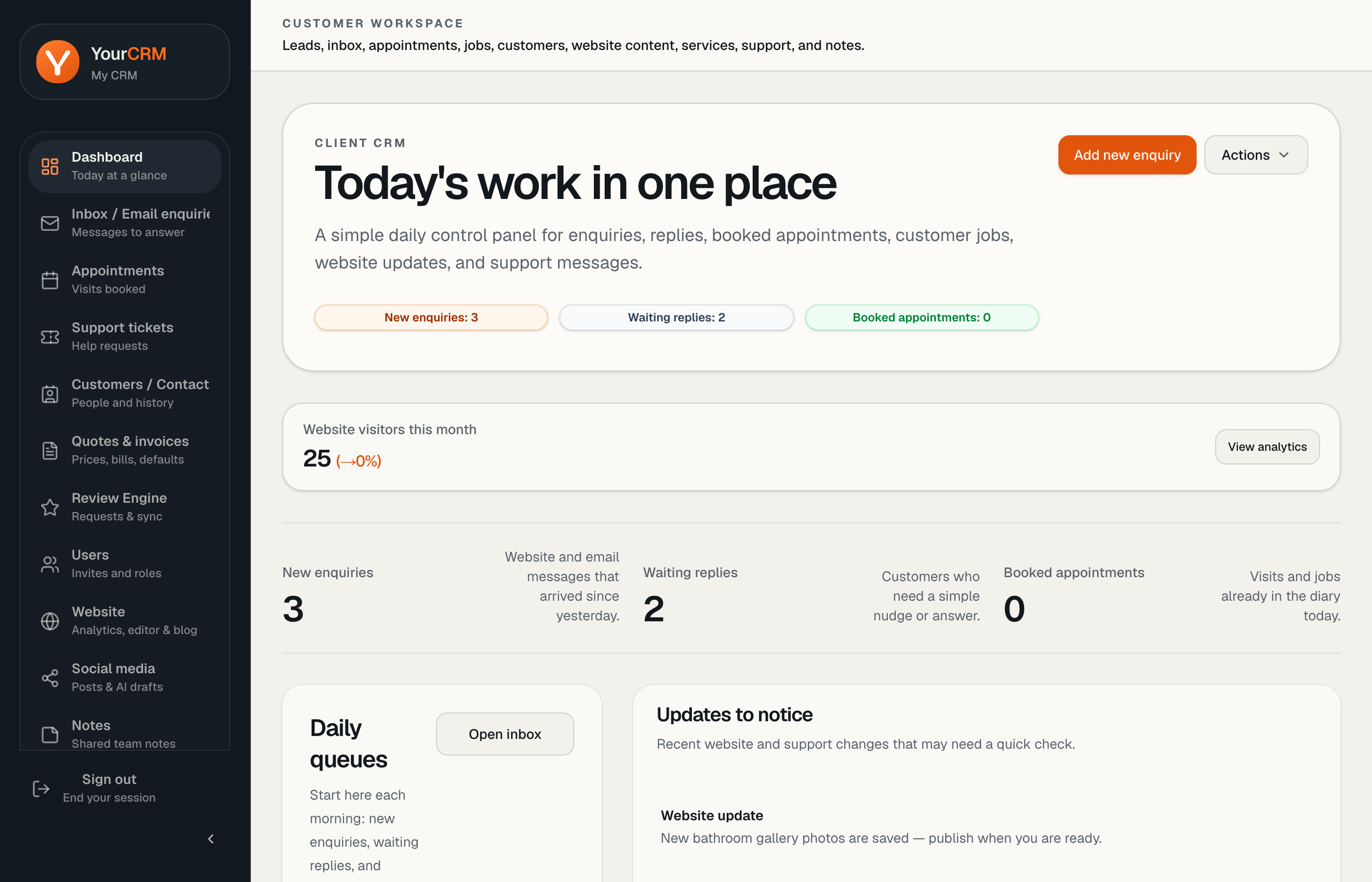
| Item | What it is for |
|---|---|
| Dashboard | Today’s queues — what needs attention first |
| Inbox / Email enquiries | Website forms and email enquiries waiting for a reply |
| Appointments | Visits and jobs (calendar or list) |
| Support tickets | Messages to the YourCRM team |
| Customers / Contacts | People and job history |
| Quotes & invoices | Pricing documents and bills |
| Review Engine | Automated review request emails after paid jobs |
| Users | Invite colleagues and manage roles |
| Website | Analytics hub, plus buttons into the editor and blog |
| Social media | Social captions and drafts (Plus / add-on) |
| Notes | Shared team notes |
On smaller screens, open the same menu from the top bar hamburger.
“Website” means analytics + editor
The Website nav item opens analytics first (/analytics). From that page you can:
- Edit website — visual editor for your live site
- Blog — draft and publish posts (Plus / Blogs & Social)
That keeps traffic insights and content tools in one place.
Header actions
Most screens put primary actions (New appointment, New ticket, Edit website) in the page header on the right. Look for an Actions menu when there are secondary options such as connecting a mailbox.
Need a guide while you work?
Many CRM screens include a discreet Guide link that opens the matching article on yourcrm.org in a new tab.