
Getting started
Signing in to YourCRM
How to open your CRM workspace, reset a password, and what happens after login.
- login
- password
- account
- mfa
Open your workspace
YourCRM for customers runs at yourcrm.cloud (or your live CRM hostname when you go live). Bookmark that URL — it is separate from your public business website and from yourcrm.org.
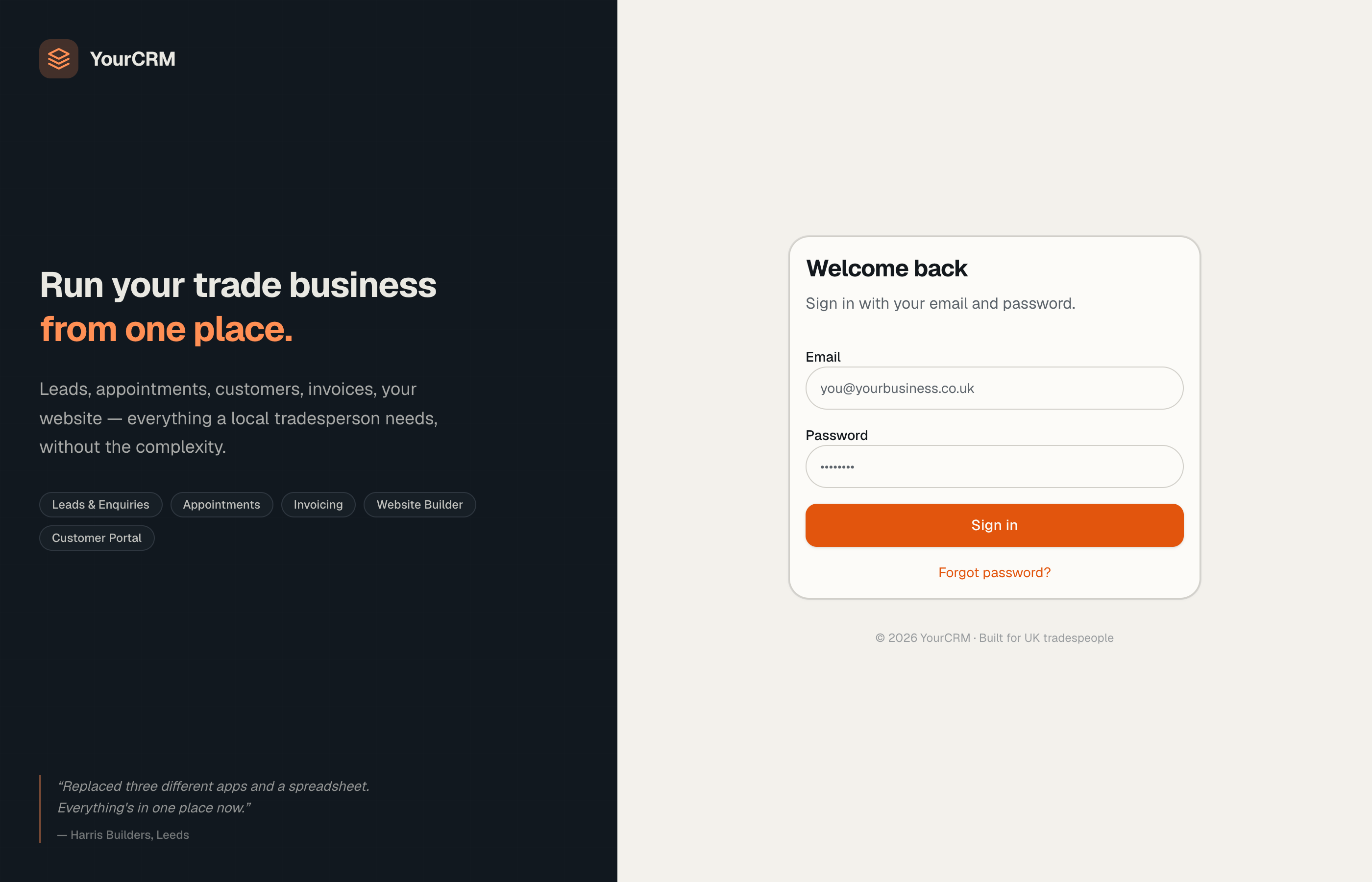
- Go to the CRM login page.
- Enter the email and password you were given (or that you set when invited).
- If your organisation requires multi-factor authentication (MFA), complete the MFA step when prompted. Admin accounts may be required to set MFA before continuing.
After a successful sign-in you land on the Dashboard — a “today at a glance” view of work waiting in the inbox, appointments, and similar queues.
Forgot password
Use Forgot password on the login screen. You will receive a reset link by email if that address belongs to an active user. Choose a strong password and store it somewhere safe.
Support mode (YourCRM staff)
If a YourCRM support engineer is helping you, they may open your account in support mode. You will see a clear support banner in that case. Your data stays yours; support mode is for diagnosing issues with your permission.
Stay signed out on shared devices
Always use Logout from the workspace sidebar when you finish on a shared computer.