
Website editor
How to edit your website
Use the visual editor: click text or images on the live preview, edit sections, and publish with Save.
- editor
- website
- sections
- theme
- draft
Open the editor
In the CRM, go to Website (analytics), then Edit website. You can also open /website/visual-editor directly.
You will see a live preview of your site beside (or above) editing controls.
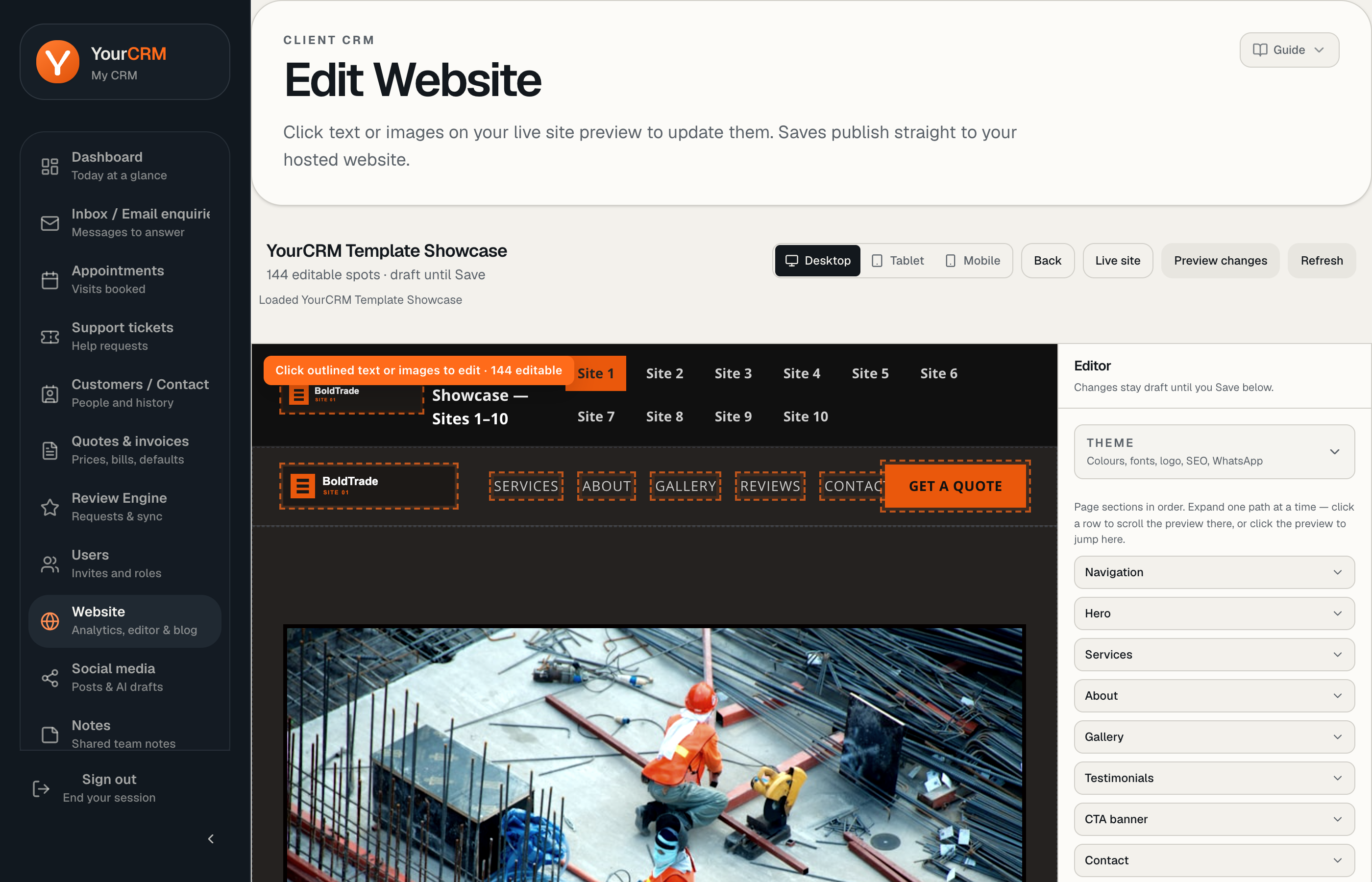
Click to edit
- Click a piece of text or an image on the preview.
- Edit the field that appears — headings, paragraphs, phone numbers, logos, and so on.
- Changes stay in a draft until you save. The live public site is unchanged until then.
Status messages such as “Draft … live site unchanged until Save” confirm you are still editing locally.
Sections
Use the section list / accordion to jump between areas of the page, typically including:
- Header & navigation
- Hero
- Services
- About
- Gallery
- Reviews / testimonials
- CTA banner
- Contact
- Footer
Each section exposes the fields that drive that part of the generated site.
Theme (colours, fonts, favicon)
Open the Theme panel to adjust accent and site colours, fonts, logo, and favicon. Theme changes apply across the site, not just one block. Like content edits, they remain draft until Save.
Templates
Some sections offer layout variants. Customers can preview options; swapping section templates for the whole library is an admin-side tool when YourCRM sets up or redesigns a site.
Tip
Make one coherent pass (copy + photos), then preview on mobile, then Save once — instead of saving after every tiny tweak.