
Website editor
Save, preview, and history
How draft vs live works, draft preview, and restoring an earlier version.
- save
- preview
- history
- versions
- discard
Draft vs live
Edits in the visual editor are draft until you press Save. Saving:
- Writes your changes to the site configuration
- Regenerates the hosted website
- Confirms with a message such as “Saved — live site regenerated”
Discard throws away the current draft and returns to the last live content.
Preview without going live
Use draft preview to regenerate a private preview of your draft. You can open that preview in a new tab to review the full page before Save.
This is useful when you have changed many fields and want a clean read-through.
History
After each successful Save, a version is kept.
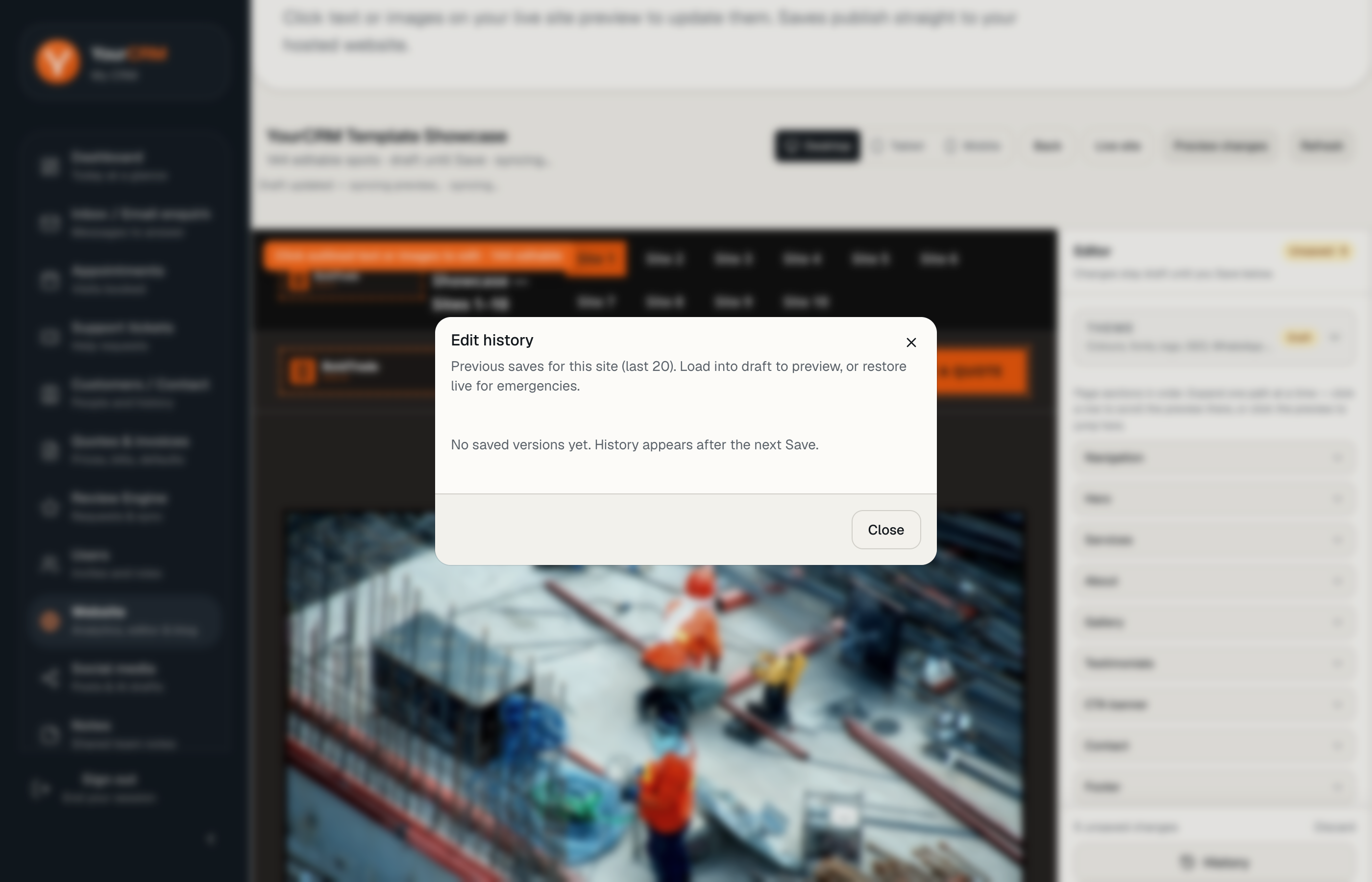
- Open History in the editor.
- Browse previous versions.
- Restore a version as draft (so you can review again) or as live (publishes immediately).
Use restore carefully on a busy site — restoring live replaces what visitors see now.
Images
Upload images through the editor upload flow. Prefer clear photos of real work; oversized files may slow the page. After replacing a hero or gallery image, preview on mobile before Save.