
Inbox & leads
Managing inbox enquiries
Filter website and email enquiries, reply, connect a mailbox, and move work forward.
- inbox
- leads
- enquiries
- mailbox
Where enquiries land
Website contact forms create inbox items in YourCRM. If mailbox connection is set up, email enquiries appear in the same Inbox.
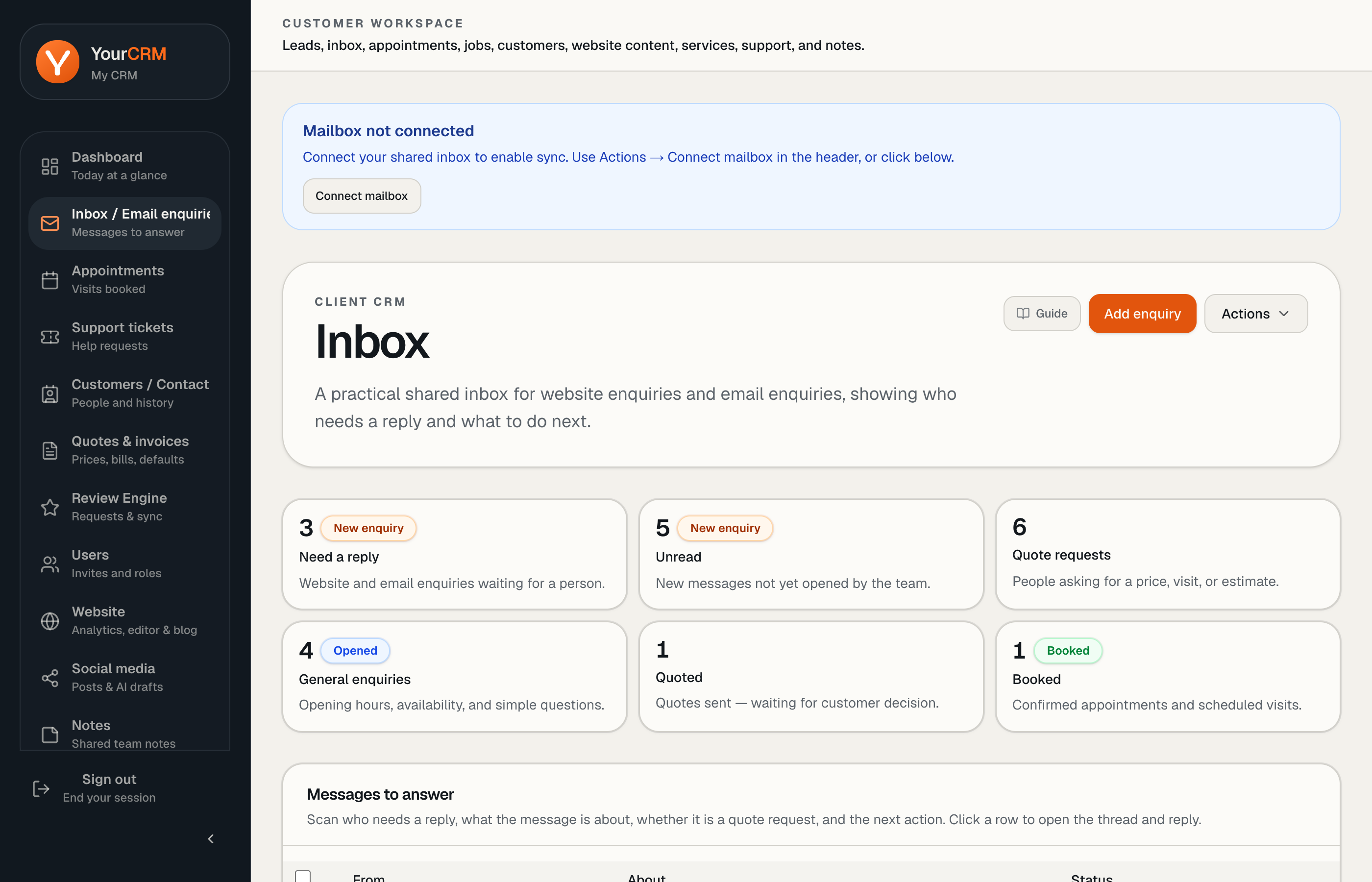
Open Inbox / Email enquiries from the sidebar.
Filters that matter
Use the list filters to focus, for example:
- Unread
- Need a reply
- Quote requests
- General enquiries
- Waiting replies
- Quoted / Booked
- Archived
Summary cards at the top jump into the same filters.
Replying
Open a message to read the thread and use the reply composer. Update status as you progress so the rest of the team can see what is done.
You can link work to customers and create follow-on appointments or quotes from the conversation when that fits your process.
Connect a mailbox
If the header shows Mailbox not connected, use Actions → Connect mailbox (or open inbox with the connect action). Until a mailbox is connected, you still receive website form enquiries — email sync needs the connection.
Older “Leads” links
Some notifications may still mention leads. In the current CRM, lead detail URLs redirect into the inbox thread so everything stays in one place.